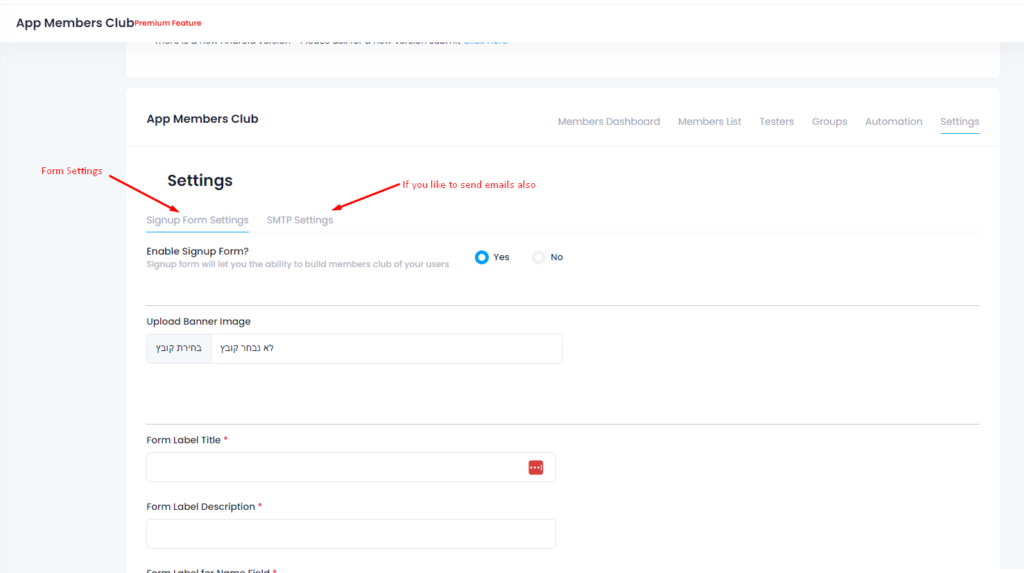
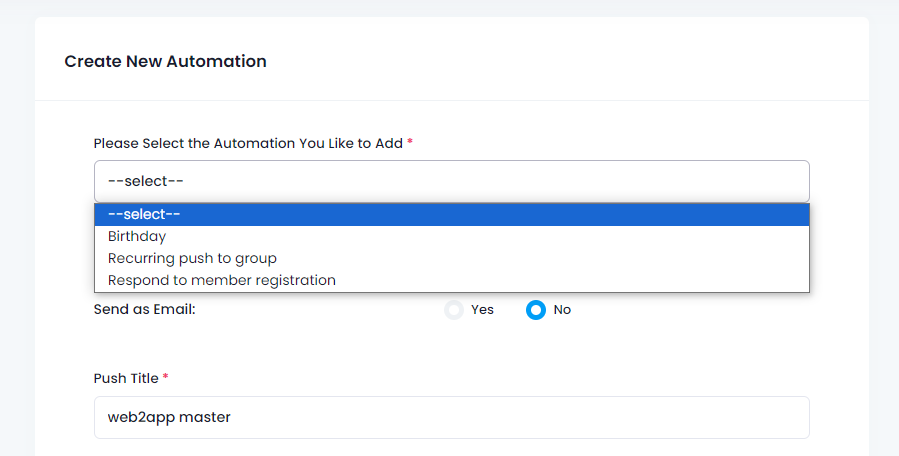
To make it easy for your clients to download your app we created a smart download link that you can send by SMS, EMAIL, WHATSAPP, etc, and also a QR Code that you can print and attach to your products and advertisment.
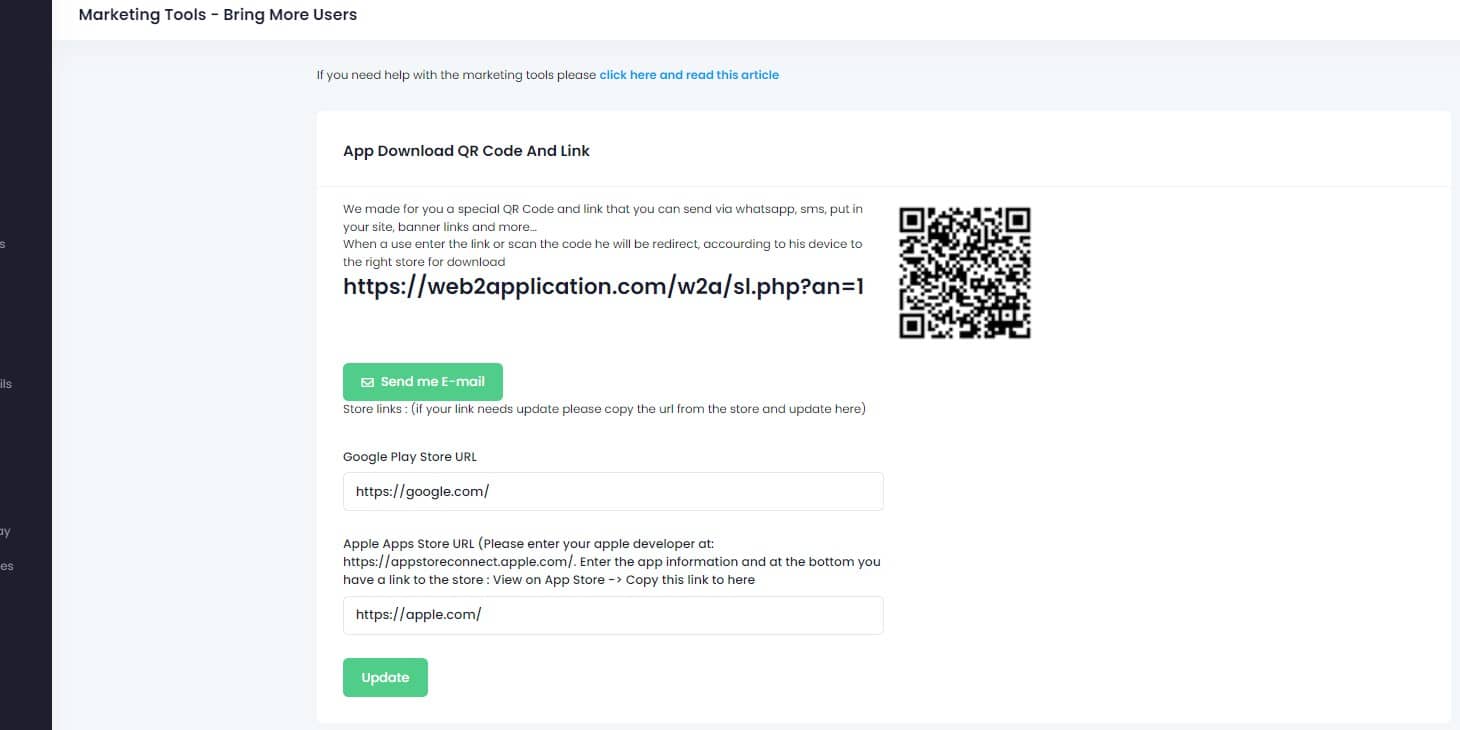
On your app dashboard in our system please enter the marketing tools tab.
In this screen you will see your smart download link that will redirect users to the right store according their device type and a QR Code.
Please note: Make sure the store links are correct and if not please update them from the links from the stores
To download the app, you must scan the QR code.
In general, QR codes can only be read by smartphones. Follow these steps to download an app using a Q QR code:
Launch the camera app on your smartphone or tablet.
Place the camera on the QR code.
Take a look at the notification on your smartphone or tablet.
Follow the on-screen directions.
With Android phones, how do you scan QR codes?
How to use a QR code to get an app on your phone
To use a QR code to download an app, you must first scan the code using your smartphone’s camera or a dedicated QR code reader.
A notice will appear, and you’ll be able to touch it. Directly to the app you’re about to download, you’ll find it here. It may be found in either the Google Play Store or the Apple Store, depending on which platform you choose.
Finally, all that’s left to do is to download it.
How to Use Web2Application’s Smart Download Links and QR Codes
Web2Application makes it simple to share your app with clients by providing a smart download link and a QR code accessible from your app dashboard under the Marketing Tools tab.
- Smart Download Link: Send this link via SMS, email, WhatsApp, or any messaging platform. It automatically detects the user’s device and redirects them to the appropriate app store (Google Play or Apple App Store).
- QR Code: Print and attach this code to your products, advertisements, or promotional materials. Customers simply scan it with their smartphone camera to be taken directly to your app’s store page.
Steps to Download Your App Using a QR Code
- Open the camera app on your smartphone or a dedicated QR code scanner.
- Point the camera at the QR code.
- Tap the notification that appears on your screen.
- You will be redirected to the app’s page in the Google Play Store or Apple App Store.
- Download and install the app.
Make sure your store links are accurate in the dashboard to ensure seamless redirection.
Why Use Web2Application for Your App Marketing?
- Automatically handles device detection and store redirection.
- Easy to share via multiple channels.
- Boosts app downloads and user engagement.
- Integrates seamlessly with your app dashboard.
Start promoting your app today with Web2Application’s smart download tools!
Sign up now to create your app and access smart marketing tools.
Frequently Asked Questions
What is a smart download link?
A smart download link automatically detects the user’s device type and redirects them to the correct app store—Google Play for Android or Apple App Store for iOS—making it easy to share your app.
How do I find my smart download link and QR code?
Log in to your Web2Application dashboard, go to the Marketing Tools tab, where you will find your smart download link and QR code ready to share or print.
Can I share the smart download link via WhatsApp or email?
Yes, the smart download link can be shared through SMS, email, WhatsApp, or any messaging platform to reach your clients easily.
How do users download the app using the QR code?
Users scan the QR code with their smartphone camera, tap the notification that appears, and are redirected to the appropriate app store to download your app.
What should I do if the store links are incorrect?
You can update the store links directly from your app dashboard to ensure users are directed to the correct app store pages.
Ready to turn your site into an app?
Create your app with Web2Application — convert your website to Android and iOS apps.

 By
By