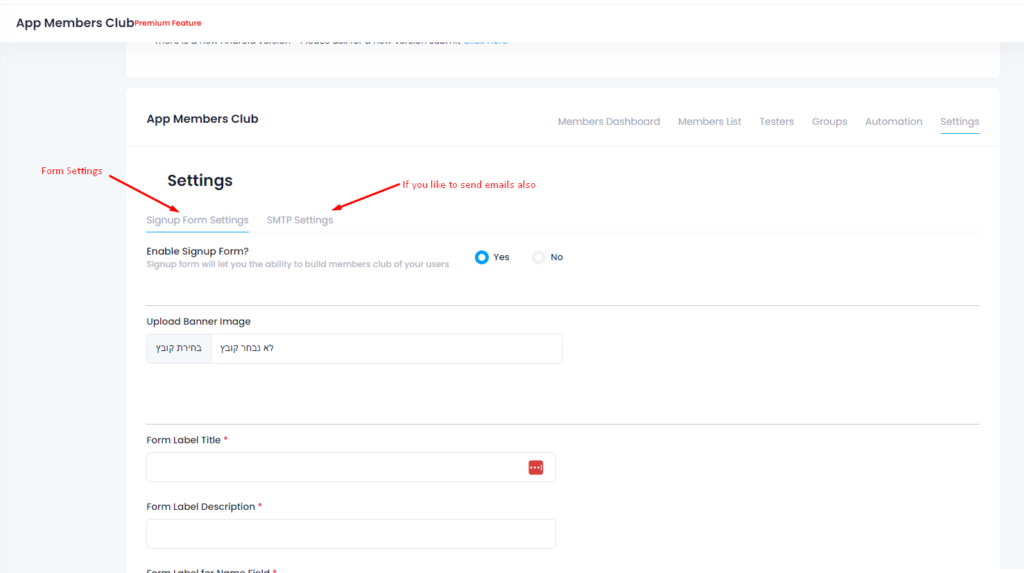
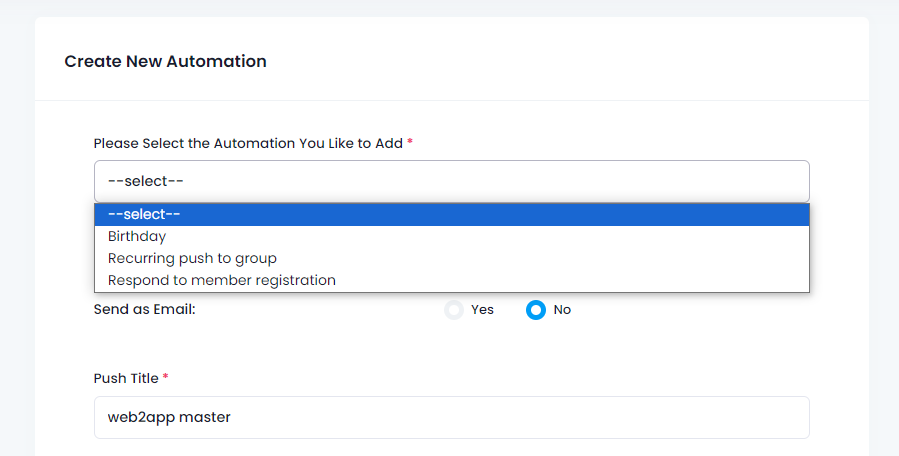
Enviar notificaciones push es muy fácil y puede hacerse desde el panel de control de tu aplicación en nuestro sistema o desde el plugin de WordPress.
Envío básico:
1. Vaya a la pantalla “enviar notificación push”.
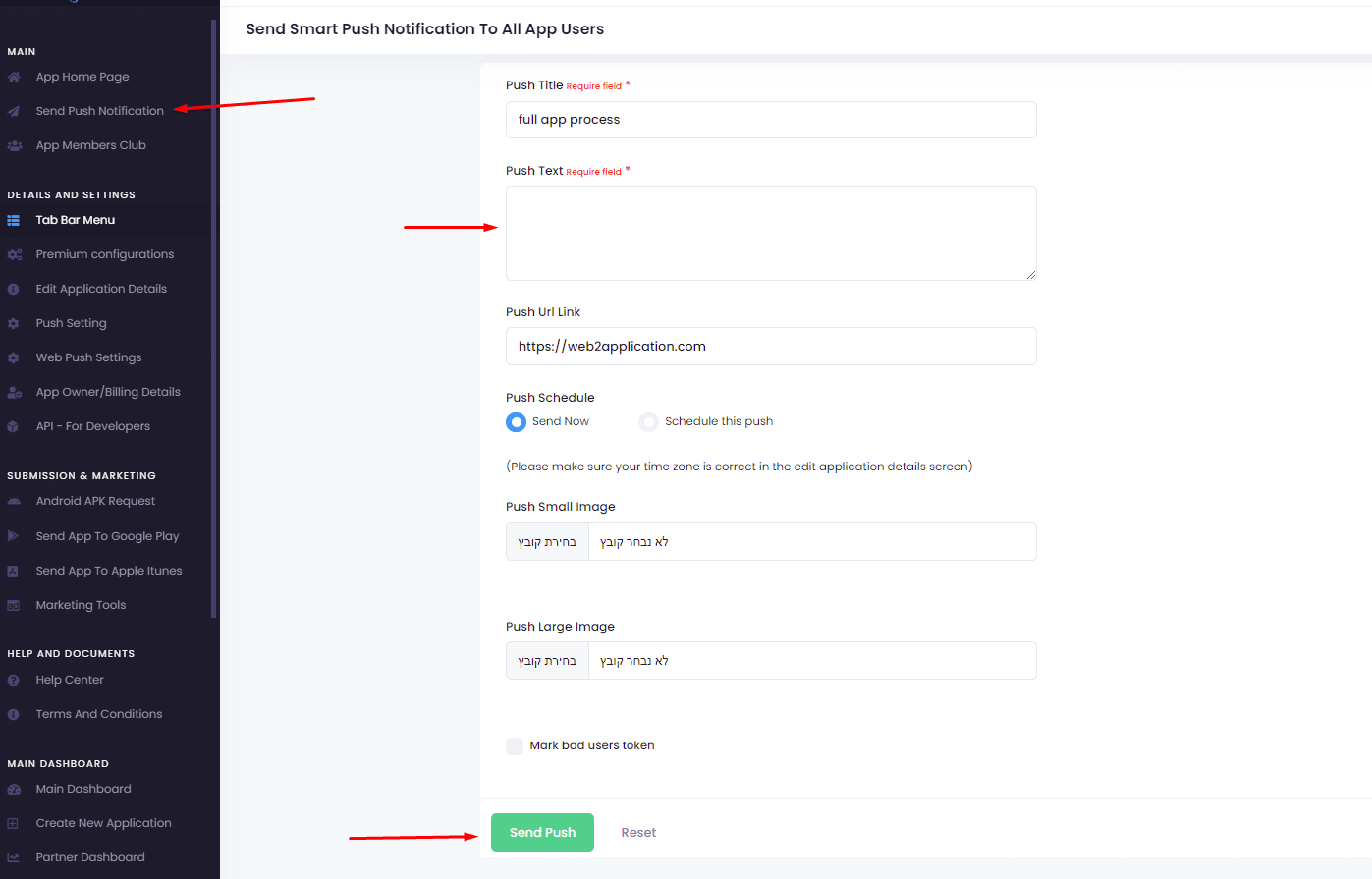
2. Escriba el mensaje push que desea enviar.
3. 3. Pulsa enviar.
Notificación push con fecha futura:
Cuando envías notificaciones push puedes añadir imágenes y programar un push.
Si seleccionas programar un push, debes asegurarte de establecer la zona horaria correcta en “editar detalles de la app”.
Es importante entender el envío de una notificación push desde Google Firebase. Entregamos los datos a Google Firebase y Firebase entrega las notificaciones a los dispositivos. A veces puede pasar un tiempo hasta que llega el empujón.
Además, algunos dispositivos Android tienen aplicaciones de ahorro de batería y bloqueadores de push que impiden que lleguen push cuando se cierra la aplicación. En esos casos, para comprobarlo, intenta abrir la aplicación y ponerla en segundo plano. A continuación, envía un push de prueba.
How to Send Push Notifications with Web2Application
Sending push notifications is simple and effective using Web2Application. You can send notifications directly from your app dashboard or through the WordPress plugin if your site is WordPress-based.
- Go to the Push Notification screen in your app dashboard.
- Type the push message you want to send.
- Click Send to deliver the notification immediately.
Scheduling Push Notifications
You can also schedule push notifications for a future date and time. To do this, add images and select the Schedule Push option. Make sure your app’s timezone is correctly set under Edit App Details to ensure timely delivery.
Understanding Push Delivery via Google Firebase
Web2Application uses Google Firebase to deliver push notifications. We send the notification data to Firebase, which then delivers it to user devices. Delivery may sometimes experience delays due to network or device settings.
Note that some Android devices use battery saver apps or push blockers that can prevent notifications from arriving when the app is closed. To test, open the app and minimize it, then send a test push notification.
Related Resources
- How to Set Up Push Notifications with Firebase
- Integrate Your WordPress Site with Web2Application
- Navigating Your App Dashboard
Ready to Engage Your Users?
Sign up at Web2Application.com and start sending push notifications today to boost your app engagement!
Frequently Asked Questions
Can I send push notifications from the WordPress plugin?
Yes, if you have connected your WordPress website to Web2Application using our plugin, you can send push notifications directly from the WordPress dashboard.
How do I schedule a push notification?
When sending a push notification, select the option to schedule it and set the desired date and time. Make sure your app's timezone is correctly configured in the app details.
Why am I not receiving push notifications on my device?
Some devices have battery saver or push blocker apps that can prevent notifications when the app is closed. Try opening the app and minimizing it before sending a test notification.
Do I need a premium plan to send push notifications?
Yes, push notifications are a premium feature on Web2Application. Upgrading your plan unlocks push notification capabilities and other advanced features.
Ready to turn your site into an app?
Create your app with Web2Application — convert your website to Android and iOS apps.

 By
By