Base44 to Android App: The Real-World Guide to Turning Your Base44 Website Into a hybrid Android App with a native shell (No Coding Needed)
- nir
- August 22, 2026
- Marketing
- Marketing AI
- 0 Comments
What Makes Base44 Unique—and Why App Conversion Is Different
Base44 is a flexible website builder known for its clean design, customizable features, and ease of use. Unlike WordPress or Shopify, Base44 sites often use custom layouts and dynamic content blocks, making them stand out visually and functionally. However, this uniqueness can introduce challenges when converting your Base44 website into a hybrid Android app with a native shell—especially if you want to avoid coding.
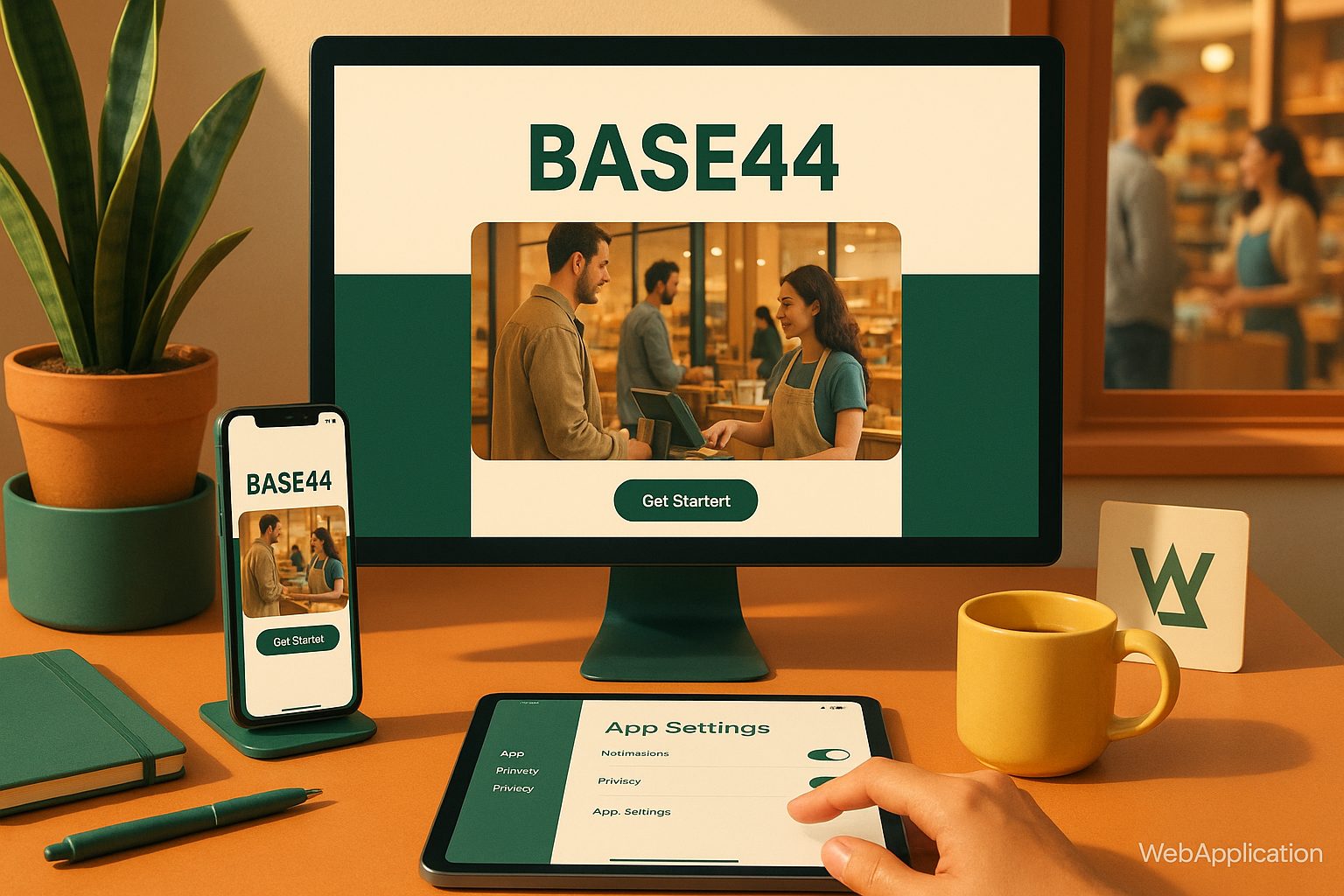
Many site-to-app platforms focus on WordPress or generic HTML sites, leaving Base44 users with limited guidance. That’s why it’s important to use a platform like Web2Application, which is designed to work with a wide range of website builders, including Base44.
Can You Really Turn a Base44 Website Into a hybrid Android App with a native shell?
The short answer: Yes. With the right no-code platform, your Base44 site can become a fully functional Android app. Web2Application bridges the gap by placing your website inside a native app shell, adding mobile features like push notifications and native navigation—without requiring you to write a single line of code.
Before you start, it’s important to check that your Base44 site is mobile-friendly and uses secure HTTPS. These factors ensure the best app experience and smooth approval on the Google Play Store.
Step 1: Preparing Your Base44 Site for App Conversion
- Ensure Mobile Responsiveness: Test your Base44 site on different devices. Responsive design is crucial for a great app experience.
- Use HTTPS: Secure your site with an SSL certificate. Google Play requires apps to load content over HTTPS.
- Simplify Navigation: Streamline your menus and ensure all important pages are easily accessible.
- Check for Pop-ups: Excessive pop-ups or overlays can disrupt the in-app experience. Minimize or disable them for mobile users.
Step 2: Using Web2Application to Build Your Android App (No Coding Required)
- Sign Up: Go to Web2Application and create a free account.
- Create a New App: In your dashboard, click “Create New App.” Enter your Base44 website URL and basic details.
- Configure App Settings: Upload your app icon and splash screen. Choose your app’s color theme and navigation style.
- Set Up Push Notifications: (Optional but recommended) Follow the in-dashboard wizard to connect Google Firebase and enable push notifications for your app users.
Step 3: Customizing Your App’s Design, Navigation, and Push Notifications
- Bottom Tab Bar: Add quick-access tabs for key sections of your Base44 site (e.g., Home, Shop, Contact).
- Personalize Splash & Icon: Update your app’s splash screen and icon to match your brand.
- Push Notifications: Use Web2Application’s dashboard to send announcements, promotions, or updates directly to your users’ devices.
- Advanced Customization: For advanced users, tweak your app’s appearance with custom CSS directly from the dashboard.
Step 4: Testing Your Base44-Based Android App Before Publishing
- Request APK: In your app dashboard, use the “APK Request” feature to generate a test version of your app.
- Install and Test: Download the APK, install it on your Android device, and check all features, navigation, and content display.
- Troubleshoot: If you notice any issues (e.g., content not loading, push notifications not working), review your Base44 site settings and Web2Application dashboard configuration.
Step 5: Submitting Your App to Google Play—What to Expect
- Upgrade to Premium: To submit your app, upgrade to a premium plan on Web2Application for full store submission support.
- Google Play Developer Account: Create a Google Play developer account (one-time $25 fee).
- Request Submission: From your Web2Application dashboard, request Android app submission. The support team will guide you through the process and help ensure your app meets Google’s guidelines.
- Review & Publish: Complete any final details in the Google Play Console and submit your app for review. Once approved, your Base44-powered Android app goes live!
Troubleshooting: Common Base44-to-App Issues and How to Fix Them
- App Not Updating Content: Make sure your Base44 site is live and accessible. Try clearing the app cache or reinstalling the APK.
- Push Notifications Not Working: Double-check Firebase setup in the Web2Application dashboard and ensure notification permissions are enabled on your device.
- Navigation Issues: Simplify your Base44 site’s menus and avoid complex pop-ups or scripts that may not render well in-app.
- Submission Problems: Reach out to Web2Application’s support for help with Google Play requirements or technical issues.
Ready to Launch Your Base44 Android App?
Converting your Base44 website into a hybrid Android app with a native shell is easier than ever—no coding, no headaches. Web2Application provides all the tools, support, and flexibility you need to go mobile and reach your audience on Google Play. Sign up today and turn your Base44 site into a powerful Android app in just a few steps!
Frequently Asked Questions
Is Web2Application compatible with Base44 websites?
Yes, Web2Application is designed to work with a wide range of website builders, including Base44. As long as your Base44 site is mobile-friendly and uses HTTPS, you can convert it into a hybrid Android app with a native shell with Web2Application.
Do I need to know how to code to convert my Base44 site into an app?
No coding is required. Web2Application provides a no-code dashboard where you can configure, customize, and launch your app without technical skills.
Can I test my Android app before publishing it on Google Play?
Absolutely! Web2Application allows you to generate an APK file for testing your app on Android devices before submitting it to the Google Play Store.
What if my Base44 website uses custom scripts or integrations?
Most standard Base44 features will work seamlessly. If your site relies on complex custom scripts, test the app thoroughly using the APK. Web2Application’s support team can help troubleshoot any issues.
How do I send push notifications to my app users?
After connecting Google Firebase in the Web2Application dashboard, you can send push notifications directly from your app dashboard to engage your users.
Ready to turn your site into an app?
Create your app with Web2Application — convert your website to Android and iOS apps.