How to send Push Notifications throw the wordpress plugin
- nir
- July 23, 2023
- general support, Plugin
- 0 Comments
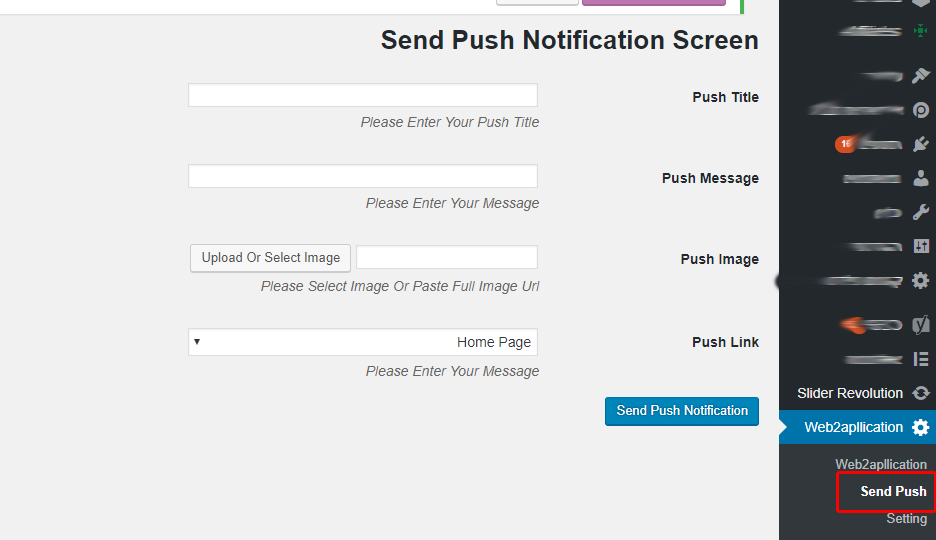
In order to send push notification to all your application users go to “Send Push” on you WordPress admin menu.
Fill the Push Title and the Push Message that are required fields.
You can select a special image that will replace your app logo in the push by pressing the select image button or by copy the full URL of the image.
“Push Link” – you can select what page or post will open when the user will open your push notification.
How to Send Push Notifications Through the WordPress Plugin
To send push notifications to all your app users via the WordPress plugin, follow these simple steps:
- Log in to your WordPress admin dashboard.
- Navigate to the Send Push menu item added by the Web2Application plugin.
- Fill in the required fields: Push Title and Push Message.
- Optionally, select a special image to replace your app logo in the notification by clicking the Select Image button or by pasting the full URL of the image.
- In the Push Link field, choose the page or post that will open when users tap the notification.
- Click Send to deliver the push notification to your app users.
Using the Web2Application WordPress plugin makes it easy to engage your users with personalized push notifications directly from your website.
Why Use Web2Application for Push Notifications?
- Seamless integration with your WordPress website.
- Easy-to-use dashboard for managing notifications.
- Supports images and deep linking for better user engagement.
- Works for both Android and iOS native apps created with Web2Application.
For more detailed instructions, visit our free how-to create an app course and explore the WordPress plugin integration guide.
Frequently Asked Questions
What are the required fields to send a push notification through the WordPress plugin?
You must fill in the Push Title and Push Message fields to send a push notification.
Can I customize the image shown in the push notification?
Yes, you can select a special image to replace your app logo by clicking the Select Image button or by entering the image URL.
What happens when a user taps the push notification?
The app opens the page or post specified in the Push Link field, directing users to relevant content.
Do I need a premium Web2Application plan to send push notifications?
Yes, push notifications require a premium plan on Web2Application to enable this feature and submit apps to stores.
Ready to engage your app users with push notifications? Sign up for Web2Application today and start converting your website into a hybrid Android and iOS app with a native shell with powerful push notification capabilities.
Frequently Asked Questions
What are the required fields to send a push notification through the WordPress plugin?
You must fill in the Push Title and Push Message fields to send a push notification.
Can I customize the image shown in the push notification?
Yes, you can select a special image to replace your app logo by clicking the Select Image button or by entering the image URL.
What happens when a user taps the push notification?
The app opens the page or post specified in the Push Link field, directing users to relevant content.
Do I need a premium Web2Application plan to send push notifications?
Yes, push notifications require a premium plan on Web2Application to enable this feature and submit apps to stores.
Ready to turn your site into an app?
Create your app with Web2Application — convert your website to Android and iOS apps.