How to Enable Push Notifications When Converting Your Web App to a Mobile App: The Complete Owner’s Guide
- nir
- July 19, 2026
- Marketing
- Marketing AI
- 0 Comments
Why Push Notifications Matter When You Convert a Web App to a Mobile App
Push notifications are one of the most powerful tools for engaging users on mobile devices. When you convert your web app or website into a hybrid mobile app with a native shell, enabling push notifications helps you reach your audience instantly, drive repeat visits, and boost conversions. Unlike emails or SMS, push notifications appear directly on users’ devices, making them hard to miss and highly effective for timely updates, promotions, and re-engagement.
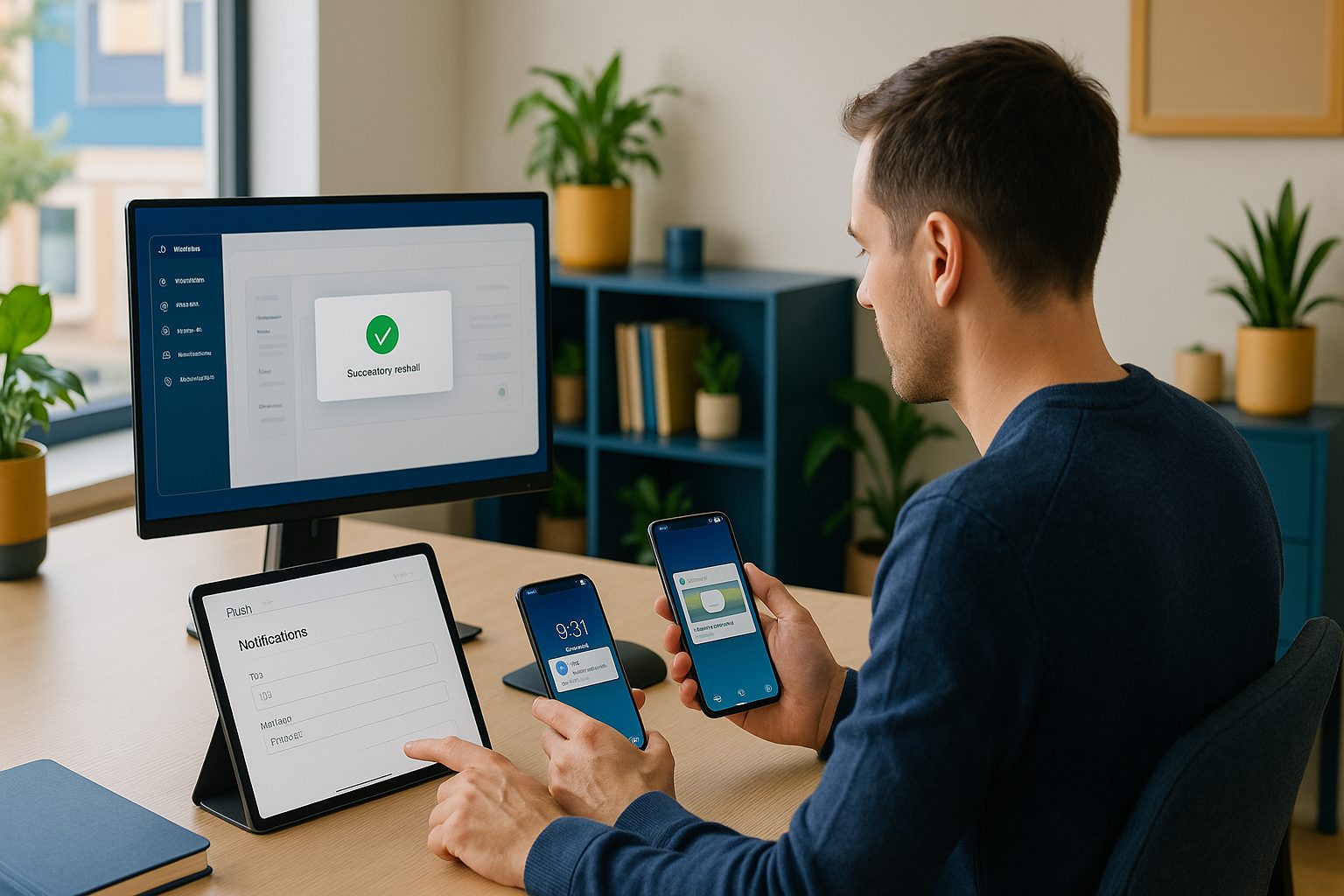
Understanding the Difference: Web Push vs. Mobile App Push
Before you start, it’s important to understand the distinction between web push and mobile app push notifications:
- Web Push: Delivered via browsers (like Chrome or Firefox) on desktop and mobile. Users must opt in through the browser.
- Mobile App Push: Delivered through native apps installed on Android or iOS devices. Users opt in via the app’s permission prompt.
When you convert your website to a mobile app, you gain access to mobile app push notifications, which offer deeper engagement and more reliable delivery than browser-based web push.
What You Need Before You Start: Prerequisites for Push Notification Setup
- A live website or web app you want to convert
- A Web2Application account (sign up at web2application.com)
- Access to your app dashboard in Web2Application
- A Google account to set up Firebase (required for push notifications)
- For WordPress sites: Web2Application plugin installed and API key connected (optional but recommended)
Step-by-Step: Setting Up Firebase for Push Notifications in Your App
- Log in to Web2Application and select your app from the dashboard.
- Navigate to Push Settings in the app dashboard.
- Start the Firebase setup wizard provided by Web2Application.
- Sign in with your Google account and create or select a Firebase project.
- Follow the prompts to connect your app to Firebase. Web2Application will guide you through copying the necessary keys and configuration details.
- Save your Firebase settings in the Web2Application dashboard.
This process ensures your mobile app is ready to receive push notifications using Google’s reliable infrastructure.
How to Connect Push Notifications to Your Converted Mobile App With Web2Application
- Complete your app’s configuration (icon, splash screen, settings) in the Web2Application dashboard.
- For WordPress users, install the Web2Application plugin and connect your API key to sync content and enable advanced features.
- Ensure your Firebase setup is complete and saved in Push Settings.
- Request your test APK from the dashboard and install it on your Android device.
- Open your app and allow notification permissions when prompted.
Testing Push Notifications: Sending Your First Message
- In your Web2Application dashboard, go to Push Notifications.
- Compose a test notification message.
- Select your app and send the notification.
- Check your device to confirm the notification appears as expected.
For iOS apps, you can test notifications using Apple TestFlight before submitting to the App Store.
Troubleshooting Common Push Notification Issues (and How to Fix Them)
- Notifications not received? Double-check your Firebase setup in Push Settings. Make sure you’ve saved the correct keys and configuration.
- App not prompting for notification permissions? Reinstall the APK and ensure you allow notifications on your device.
- Using WordPress? Confirm the Web2Application plugin is installed and API key is correct. Sync content if needed.
- Still not working? Clear the app cache or reinstall the APK. If issues persist, reach out to Web2Application support for help.
Best Practices for Engaging Users With Push Notifications After Launch
- Send timely, relevant updates—avoid spamming users.
- Personalize messages when possible for higher engagement.
- Segment your audience to target notifications based on user interests or behavior.
- Monitor analytics to refine your push notification strategy over time.
Ready to Boost Engagement? Create Your App Free With Web2Application
Enabling push notifications is one of the best ways to keep your audience engaged after converting your website to a mobile app. With Web2Application, you can generate a test APK, explore Premium features—including advanced push notifications—for 14 days, and experience how easy it is to connect with your users. Create Your App Free today and start sending push notifications in minutes!
Related articles
Frequently Asked Questions
What is the difference between web push and mobile app push notifications?
Web push notifications are sent via browsers and work on both desktop and mobile browsers, while mobile app push notifications are delivered directly through native apps installed on a device. Mobile app push offers more reliable delivery and deeper engagement.
Do I need a Google account to enable push notifications in my mobile app?
Yes, you need a Google account to set up Firebase, which is required for enabling push notifications in your converted mobile app using Web2Application.
Can I test push notifications before publishing my app?
Absolutely. With Web2Application, you can generate a test APK, install it on your Android device, and send test push notifications from your dashboard before submitting your app to the stores.
What should I do if push notifications are not working in my app?
Check that your Firebase setup is complete and the correct keys are saved in Push Settings. Also, ensure you’ve allowed notification permissions on your device and, if using WordPress, that the plugin is installed and API key is correct.
How can I engage users effectively with push notifications?
Send relevant, timely, and personalized messages. Segment your audience for targeted notifications and monitor analytics to continuously improve your push notification strategy.
Ready to turn your website into an app?
Create your Android and iOS app without coding. Start free, generate a test APK, and explore Premium features with a 14-day trial.